
Business Portfolio Set Up
Step 1: Create a Meta Business Account
- Go to Meta Business Suite
- Click Create Account
- Enter:
- Business Name (same as legal documents)
- Your Name
- Business Email
- Confirm email verification
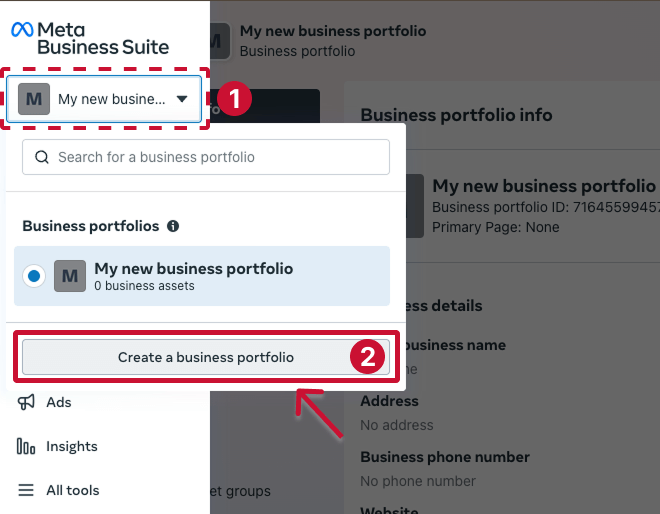
👉 This creates your Business Portfolio (Business Manager).
Step 2: Add Business Details
- Open Business Settings
- Go to Business Info
- Add:
- Legal Business Name
- Registered Address
- Website
- Phone Number
- Business Category
- Ensure all details match your official documents
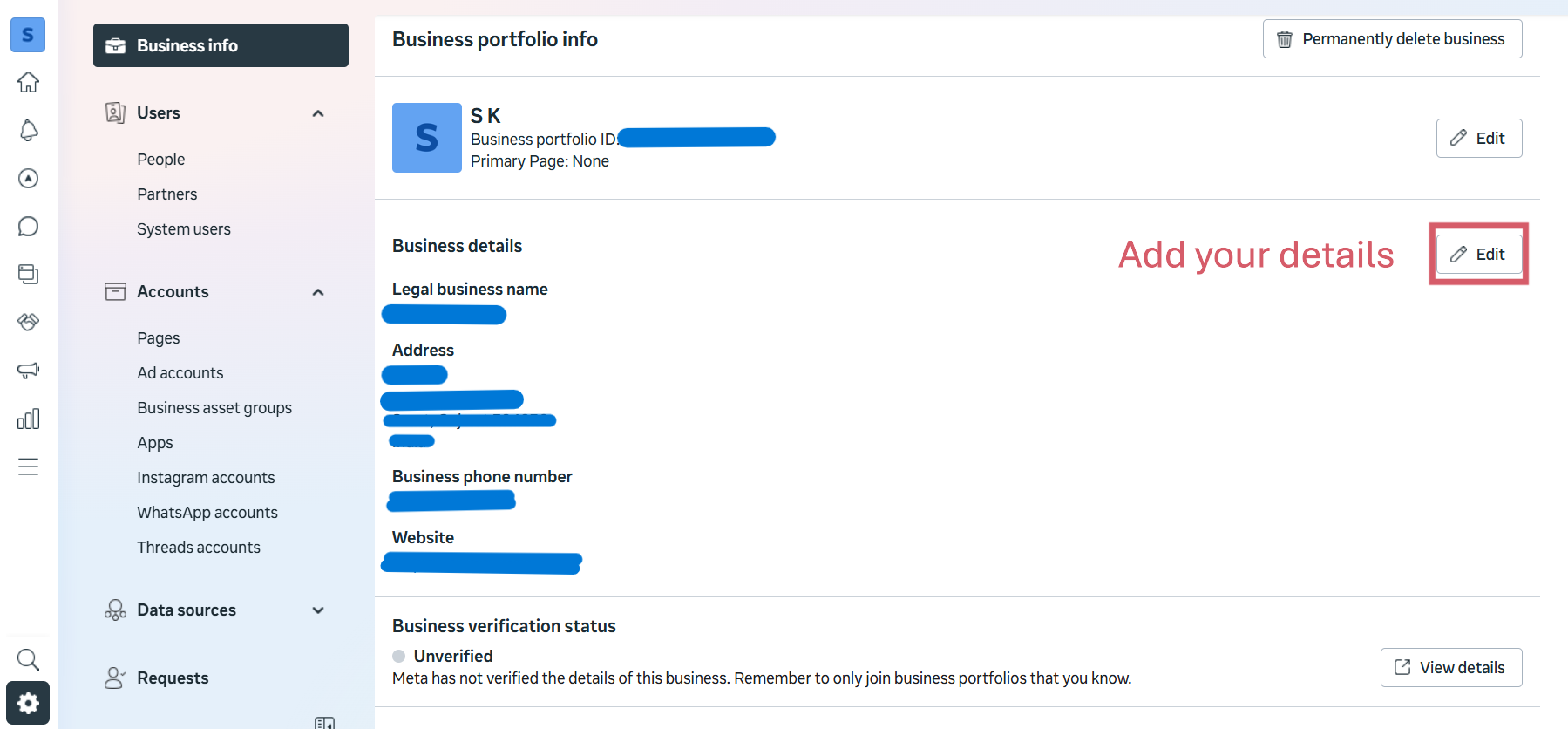
⚠️ Important: The name must match your GST or registration certificate.
Step 3: Add & Verify Your Business Website
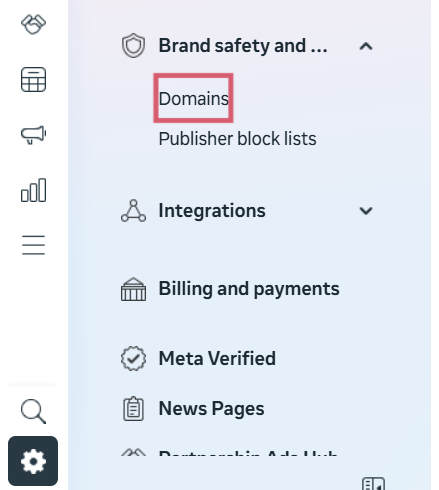
- Go to Brand Safety → Domains
- Click Add Domain
- Enter your website domain
- Verify using one of:
- DNS TXT record (recommended)
- Meta Tag
- HTML file upload
✔ Domain verification increases trust and approval speed.
Step 4: Start Business Verification
- Go to Security Center
- Click Start Verification
- Submit required documents:
- GST Certificate / Business Registration
- PAN (if applicable)
- Utility Bill (if address proof required)
- Verify business phone number via OTP
⏳ Verification usually takes 1–5 working days.
Step 5: Create WhatsApp Business Account (WABA)
- Go to Business Settings
- Click Accounts → WhatsApp Accounts
- Click Add
- Create new WhatsApp Business Account
- Add:
- Display Name (customer-facing name)
- Business Category
- Timezone
Step 6: Add & Verify Phone Number
- Click Add Phone Number
- Enter a number that:
- Is not already registered on WhatsApp app
- Can receive OTP (SMS or call)
- Verify with OTP
- Select messaging use case
After verification, your number becomes API-ready.
Step 7: Add Payment Method
Go to Meta Business Suite
Open Business Settings
Click Accounts → WhatsApp Accounts
Select your WhatsApp Business Account (WABA)
Inside your WhatsApp Account, go to Payment Settings
Click Add Payment Method